To start, make a folder with all your desired background images. Call it something like "Backgrounds" and put it in your picture folder. This is going to be where you can put pictures you want to have as a background.
Now we can set up the background settings.
- Open up "System Preferences" > Desktop & Screen Saver.
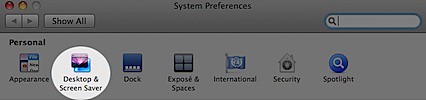
- Make sure your in the "Desktop" section.

- Add your "Backgrounds" folder by clicking the + button.

- Click the "Change Picture" checkbox and choose how often you want your background to alternate.
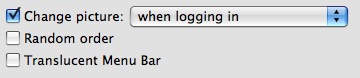
You can also select "Random Order" if you want as well as change how the picture is shown (such as "Fill Screen", "Tile", "Center", etc.).
Enjoy giving your computer a new look each time you login.

No comments:
Post a Comment